👜 Manual
ATTENTION!
Due to Telegram Policy the only payment method allowed is payment via Telegram Stars.
If you decide to use the Manual payment method, we assume no responsibility if anything goes wrong.
Manual payment consists of sending payment instructions to every user who wants to purchase something from our store. These instructions must be configured in the management system and will be automatically sent by the bot to each user at the time of payment.
Instructions mean, for example, a request to send an amount of money to a certain bank account. Furthermore, in the same instructions it will be necessary to explain to the user to send the screenshot of the payment in the chat as proof.
You can use the following variables to insert the user data that will replace the variable into the message:
• %amount% which will be replaced with the total price of the cart
• %id% which will be replaced with the user's Telegram id
In the image below we can see an example of this:
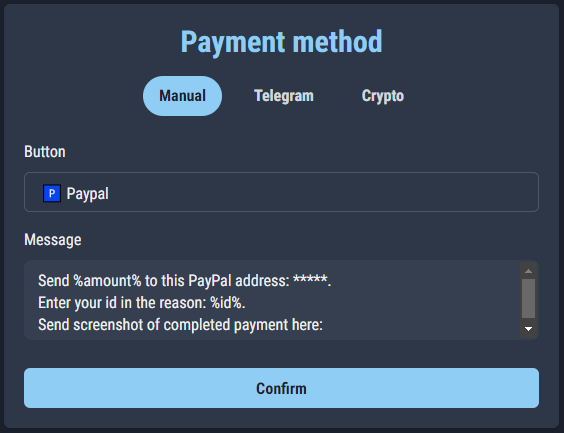
We recommend adding to the instruction message also the warning that the user will have the number of hours you entered in the management system available to pay, otherwise the order will be deleted.
Furthermore, as you can see from the previous image, it is possible to enter the name that the payment button will have in the user's chat with the bot.
To use manual payment, you must first create a Telegram group to manage user payments; subsequently we will activate the topic mode in our bot by going to the main menu, pressing on "Feedback module" and on "Topic mode":
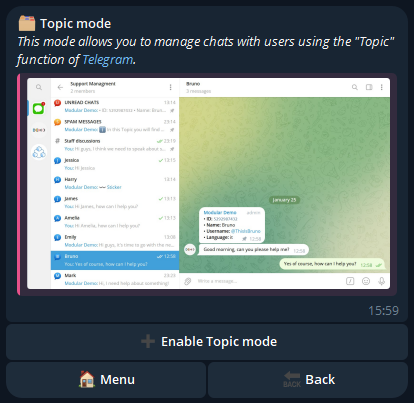
We then press on "Activate Topic mode"; once the wizard has been completed we will have our group configured in topic mode with our bot inside:
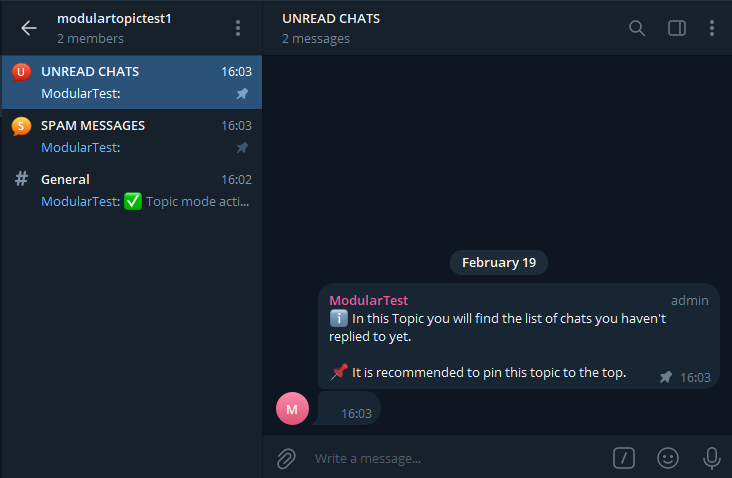
By activating topic mode, you will have a chat for each user who will send you the payment proof screen.
We then proceed to make a test payment:
After adding a product to the cart and confirming, we press on the customized button that we defined previously (PayPal):
At this point we send a test image:

The bot tells us to wait for approval. We then return to the Topic group activated previously, where the chat with the user who made the payment (us) will appear:
Once you have verified that everything is ok, simply press on "Valid payment" and the user will be sent the reward for what he purchased.
If, however, there are problems with the screen sent, we can press on "Invalid payment" and the user will receive an automatic message relating to the payment failure.
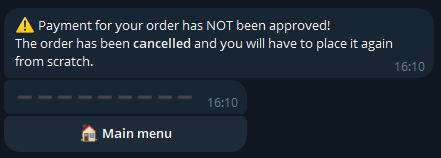
We recommend contacting the user via their Topic chat to explain what went wrong with the payment.