🔸 Catalog
A shop's inevitable starting point is the creation and management of its own products. In fact, on this page it is possible to create, search, modify and delete the products we want to sell with our shopbot.
Product creation
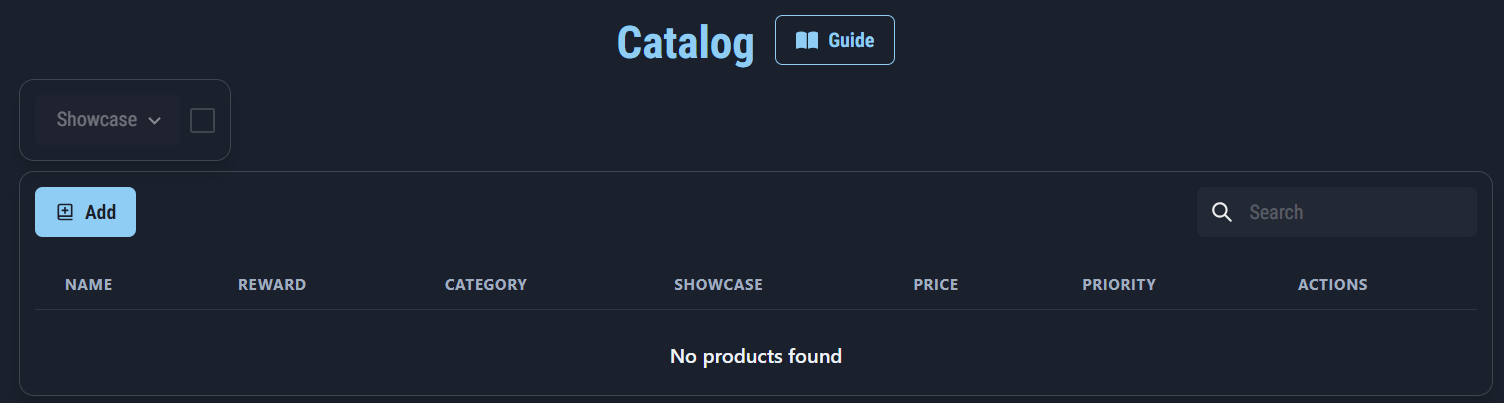
The catalog page presents a table that allows you to carry out product management operations
So let's start from creation:
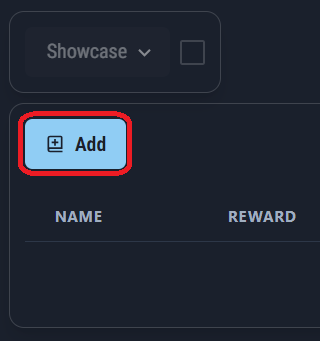
Pressing the "Add" button on the top left of the table will open the section where you can add the product properties to be created.
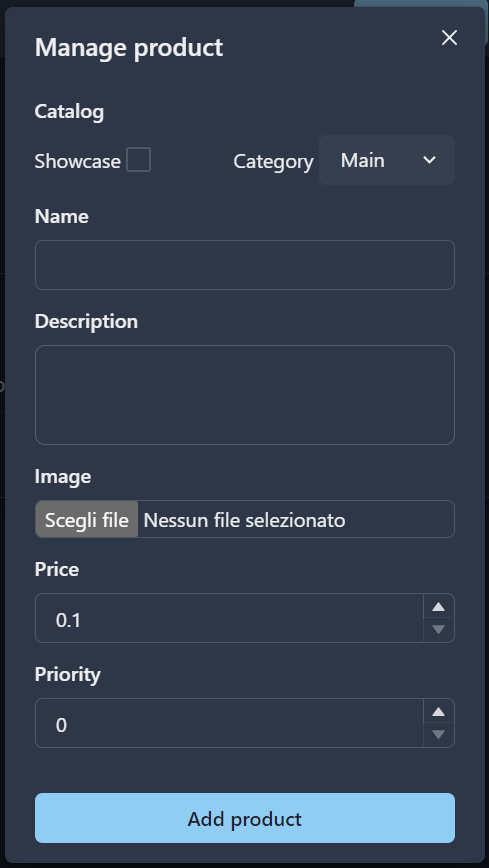
Showcase
In the first part we can decide whether the product will be added to the "Showcase" or not.
The Showcase is a special page of our shop that will only be present if at least one product belongs to it. The Showcase, when present, is the first page of the catalog that will appear to customers when they open the store.
Category
Together with the Showcase we can choose which category our product will belong to.
Initially there is only one standard category, which can be modified on the appropriate page.
Name, Description and Image
Subsequently name, description, price and an image of our product must be entered. It will be necessary to add a preview image representing our product. This image will be displayed for our customers in the store catalog.
The chosen image must have a size no greater than 10 MB and must have a format between the following: "jpeg", "jpg", "png". Furthermore, the sum of pixels in height and width must not exceed 10000px.
Priority
Priority is a value that indicates the importance of a product compared to others; the higher it is, the sooner that product will appear on its catalog page.
Once we press "Add product", we will be redirected to the specific product page, where we can set its Reward, i.e. what the customer will receive after purchase.
Attention: if the Reward relating to the newly created product is not added, that product will not appear in the Shop catalog and will therefore not be purchasable.
Product management
After creating a product, we will have the possibility to modify its properties and/or delete it.

By pressing on the pencil icon, we can change the properties of the product.
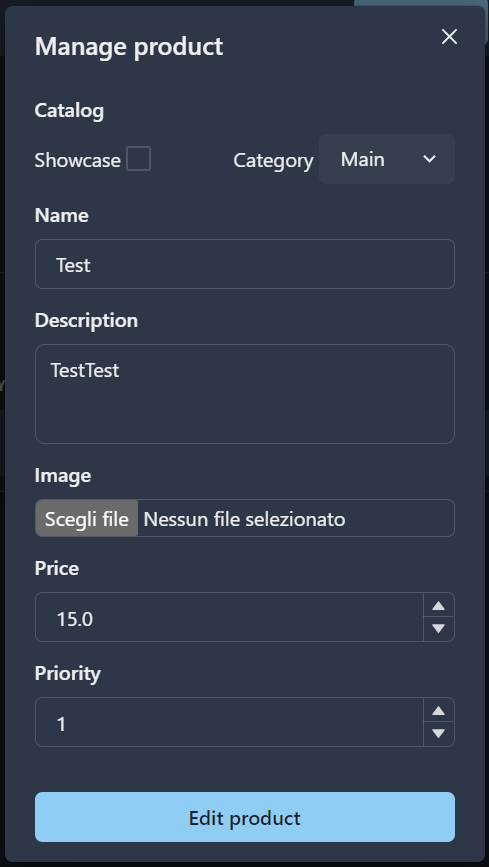
ATTENTION: if you change the price of a product and a customer has already added it to the cart, the amount to be paid will be the one before the change.
Products removal
To delete a product, press the trash can icon and confirm your choice:
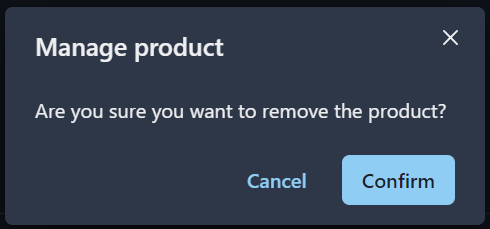
Before doing so, however, it is advisable to make it Invisible and wait at least a day.
To make it Invisible, simply press on the pencil icon and select the "Invisible" category from those available.
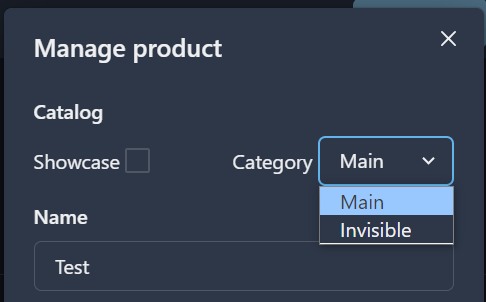
In fact, an Invisible product will not appear in the customer catalog and consequently cannot be added to the cart.
In any case, if we try to delete a product present in at least one of the customers' carts, the management system will give an error, therefore preventing us from removing it.

Product details
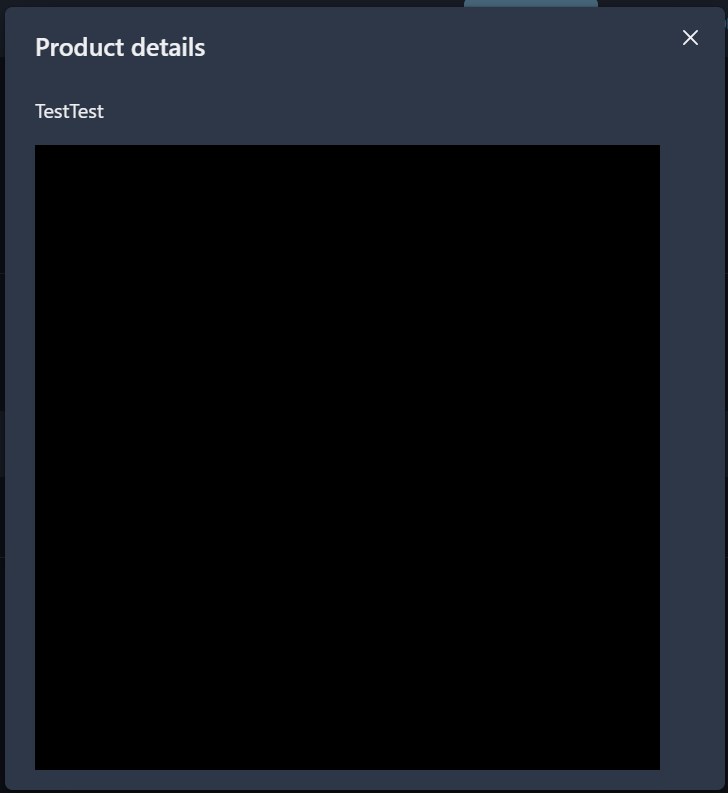
By pressing the info icon we can view the description and image of the added product:

Finally, by pressing on the trophy icon we will be redirected to the product reward page.
