✍️ My posts
With the My Posts feature you can review, edit and delete posts created with Channel Help.
In the first menu you can choose whether to manage the posts in a channel or alternatively whether to manage the saved ones.
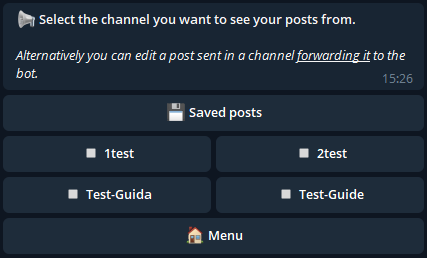
In case of saved posts we will find the list of all the posts saved so far, regardless of the channel.
If we select a channel, the bot will show the list of posts sent or scheduled.
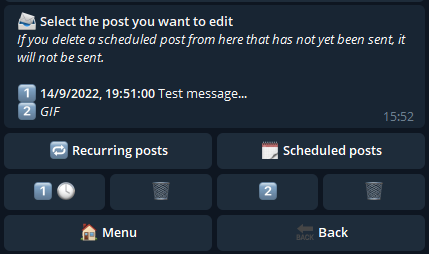
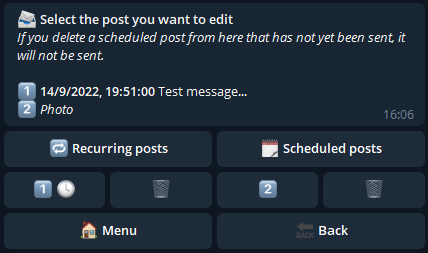
The first post is scheduled, as can be seen from the clock image and the schedule date in the bot message. While the second is a normal post sent.
In addition to the posts created, you can select:
Scheduled posts
By clicking on "Scheduled posts" you can check the date of all scheduled posts on the channel.
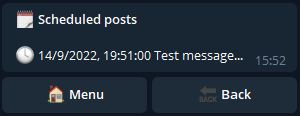
By pressing on one of the numbers in the list, you can manage the corresponding post.
Post management
For example, we press on the second post:
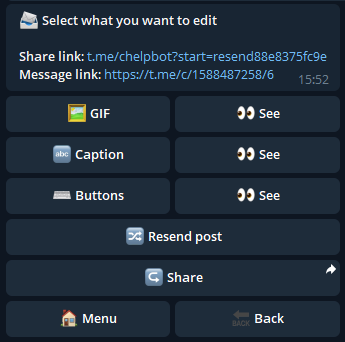
The post in question is a Gif: pressing the "See" buttons we can check its elements. By pressing on the left buttons we can modify its content.
For example, press the GIF button:
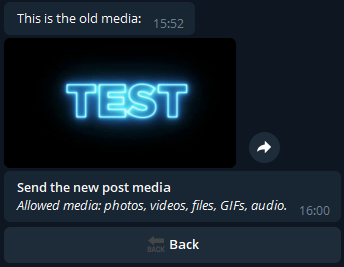
The bot first shows us the Gif of the post and then asks us to send the new media that will replace it. Be careful to send one of the supported media, otherwise the bot will reply with an error.
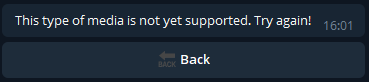
Let's try to send a supported media, for example a photo:
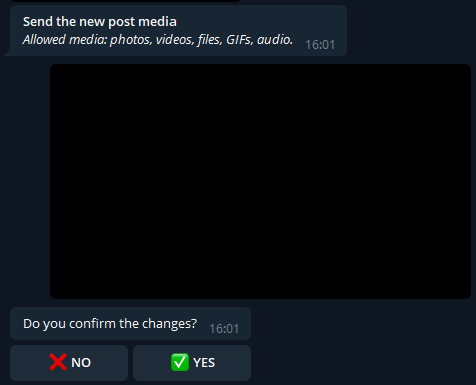
Once the changes are confirmed, the post will be edited by changing from Gif to photo.
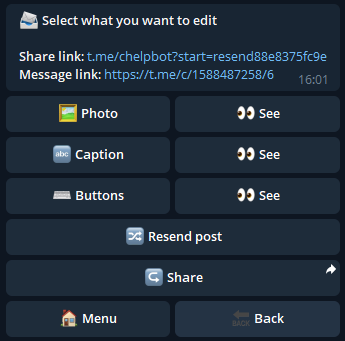
The "Resend Post" button allows you to resend this post in one or more channels, taking you to the final Create Post menu.
The "Share" button instead gives you the possibility to share the post created in one of your Telegram chats.
Now let's go back to the previous menu and select the first post, that is the one programmed:
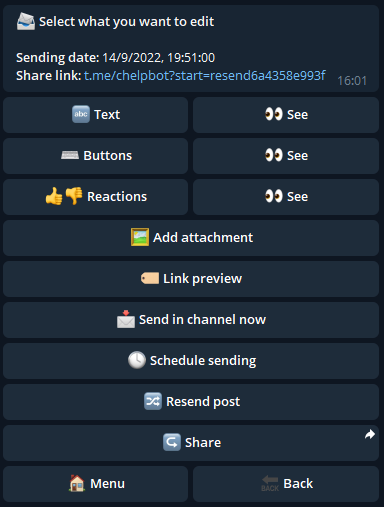
We can see that in this case the post is a text message that contains the reactions, which can be managed by pressing the corresponding button:
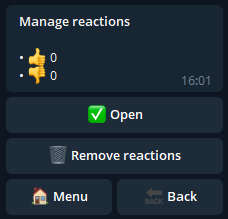
The numbers next to each reaction indicate the total vote of all users who pressed that reaction.
It is not possible to edit them, only to remove them from the post.
It is also possible to terminate the possibility of voting by pressing the "Open" button which will then become "Closed."
Another option available for this post is "Add Attachment". Being a text post, it is possible to attach a media to it as for the Create post function.
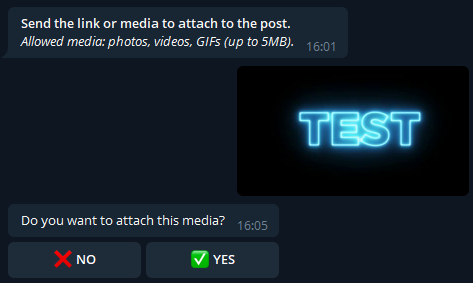
After pressing on "Add attachment", sending a supported media (in this case a Gif) and pressing "YES", the post will be identified as "Gif" and no longer as text.
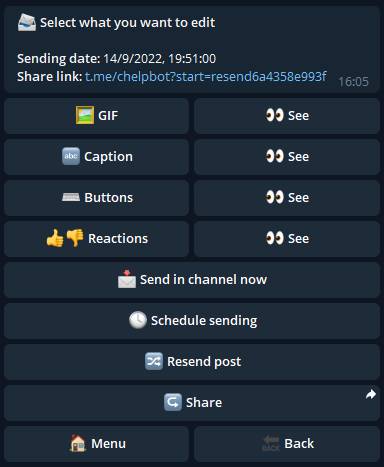
However, it will be possible to return to the text post by clicking on "GIF":
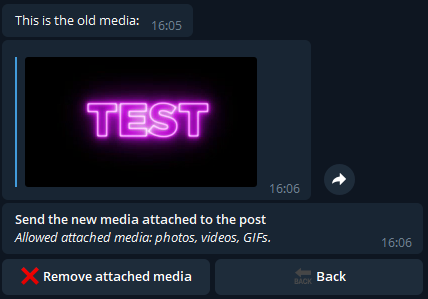
At this point the bot sends us the attached Gif, asking to send the new media or to delete the current one. Then click on "Remove attached media".
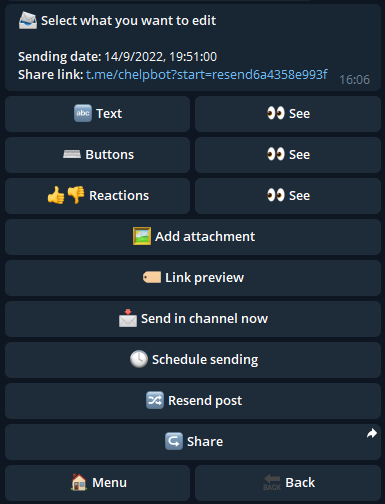
As you can see, the post has returned to being of the textual type as it was in the beginning.
Finally, the last two options we can find since the post is scheduled are "Send in channel now" and "Schedule sending".
The first allows you to send the post immediately in the channel instead of on the scheduled date. The second instead allows you to change the sending schedule date, as explained in the paragraph of the Create post function.
Post deletion
Going back to the summary of the posts of the selected channel, you can press on the trash to delete one:
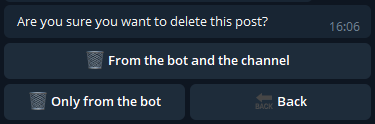
If the "Only from the bot" option is selected, the post will remain in the channel it was sent to, but will no longer be managed by Channel Help. In the other case, however, the post will also be deleted from the channel, as long as it was sent no more than 48 hours before.