➡️ Getting Started
To use Channel Help you need to have a channel in which to add the bot.
If you don't have your own channel yet, now's the time to create one!
Create a Telegram Channel
To use Channel Help, you must first create a channel in which to add the bot.
If you are using Telegram for PC then the procedure is very simple: click on the icon on the top left and then on "New channel".
If, on the other hand, you are using Telegram for Android, click on the pencil at the bottom right and then on "New channel".
Finally, if you use Telegram for iPhone you need to press the pencil icon at the top right and then again on "New channel".
Add Channel Help to a channel
Channel Help doesn't work in groups, but only in channels!
To add the bot to a channel that has already been created, go to the Channel Help chat, click on the bot name and then on the "Add to group or channel" button:
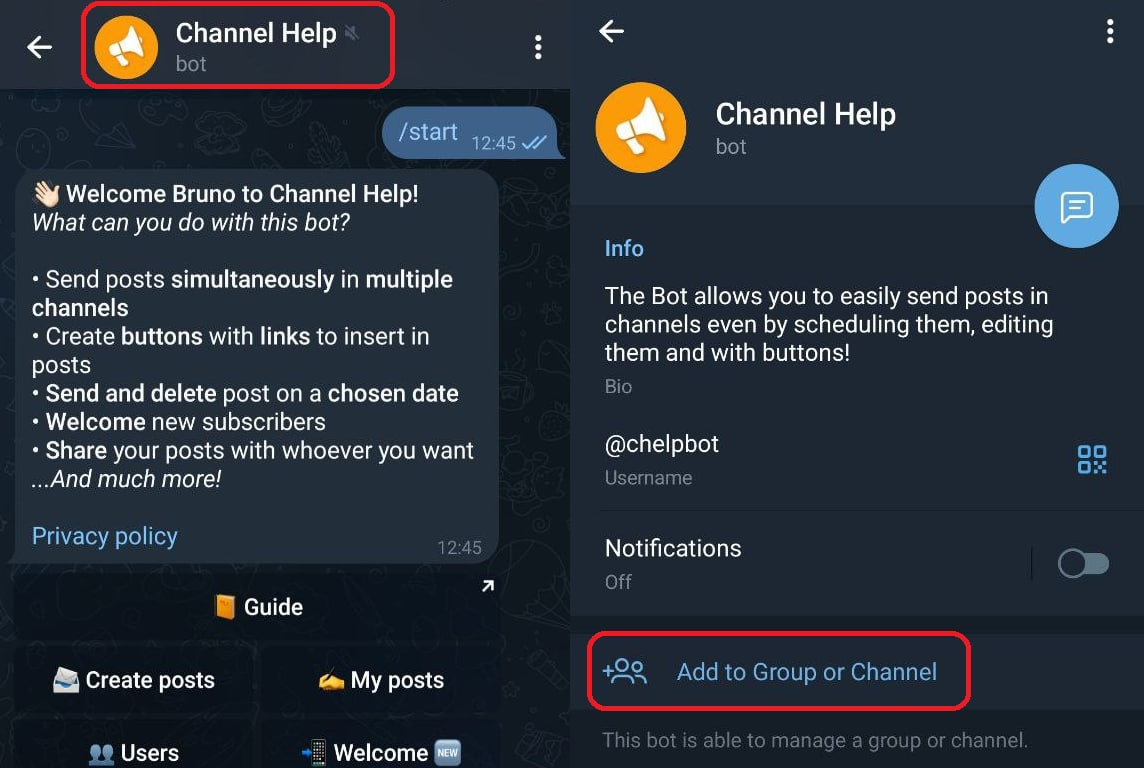
Subsequently, you will have to select the channel in which to add it, choose the permissions of the bot and press the "Add bot as admin" button.
For Channel Help to work properly it must have the following permissions:
Post messages
Edit messages of others
Delete messages of others
Add members
If you encounter any issues using this method to add the bot, proceed as follows:
Go to the chat of your channel
Press the channel name at the top
Press the pencil icon ✏️ or access the “Manage channel” menu
Go to “Administrators”
Press “Add administrator”
Search for
@chelpbotand press the bot’s nameGrant the appropriate permissions as indicated above
If after adding the bot to the channel you don't receive a confirmation message from the bot, you need to remove it and add it back to the channel with the same procedure.
Administrators and permissions
Depending on the situation, it may be convenient to get help from someone to manage your channel, or to add a user as an administrator. To do this, go to the channel chat, click on the name, then on the "Administrators" button and finally search for the user to be promoted by his name or username. Finally, you need to decide your permissions and click on the checkbox at the top right.
From this moment on, that user will also be able to use Channel Help to manage the channel, depending however on the permissions assigned to him. In fact, for each admin it is possible to assign 5 permissions that will allow him to manage certain options depending on which ones have been chosen.
Post messages: with this permission enabled the admin will be able to create posts in the channel. This is the main permission to assign to an admin; without it he will not be able to use any feature of the bot.
Edit messages of others: with this permission enabled, the admin can modify any post in the channel from the "My posts" menu. Otherwise, he will only be able to edit the posts he has created.
Delete messages of others: with this permission enabled the admin will be able to delete any post in the channel from the "My Posts" menu. Otherwise, he can only delete the posts he created.
Add members: with this permission enabled the admin will be able to manage the welcome in the channel.
Add new admins: with this active permission the admin can promote other users to actual admins or virtual admins.