⌨️ Buttons - Modular
Buttons
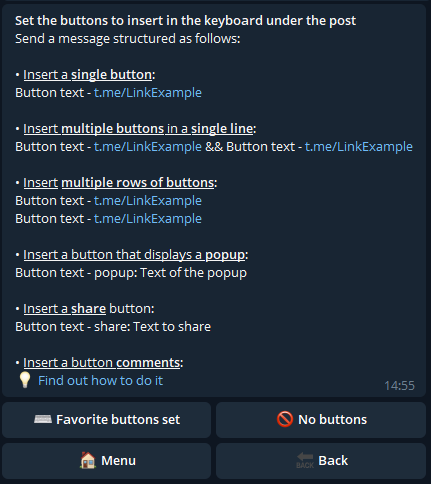
With Modular, it is possible to add buttons under messages.
You can’t add buttons to Albums (multiple photos/videos together) due to Telegram limitations.
Button with link
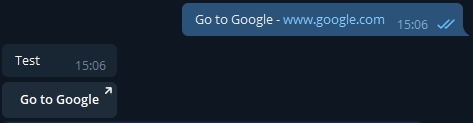
A button that when pressed redirects you to the inserted link.
To create it, you need to send the bot a phrase structured like this:
button text - button link
Replace "button text" with the text you want the button to have and "button link" with the actual link.
Example:
Popup/Alert Button
A button that, when pressed, shows a specific message via a pop-up.
There are two types of popup buttons:
Popup
Alert
The first is a full-screen pop-up that requires confirmation to close:
The second one is less intrusive and automatically closes after a few seconds.
To create it, you need to send the bot a phrase structured like this:
button text - popup:Popup text or button text - alert:Alert text
Replace "button text" with the text you want the button to have, and "Popup text" with the message for the pop-up.
Example:
If you want to wrap the popup message, enter \n as the line separator.
Example: Press here - popup: First line\nSecond line\nThird line
Shop Button
A button that, when pressed, opens your digital shop.
button text - shop
Click here for more information on the Shop Module.
Menu Button
A button that, when pressed, opens another customizable menu.
Click here for more information on the Menu Module.
Start Button
A button that, when pressed, redirects the user to the start menu.
Button text - menu: start
Form Button
A button that, when pressed, opens a form.
Click here for more information on the Form Module.
Copy Button
A button that, when pressed, copies the specified message to the user's clipboard.
button text - copy: text to copy
Share button
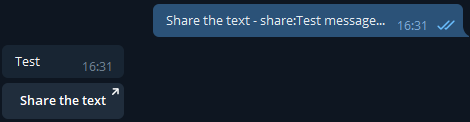
A button that allows you to share a text with someone once pressed.
Each user who presses the button will be able to choose a chat and the text to be shared will be automatically inserted in the message box of that chat.
To create it, you need to send the bot a phrase structured like this:
button text - share:Text to share
Replace "button text" with the text you want the button to have and "Text to share" with the text you want users to share.
Example:
Colored buttons
It is possible to create buttons with the background in one of the following colors
Green - #g
Red - #r
Primary - #p
To color a button, you need to add the specific hashtag at the beginning of the button text:
#g Green button - linkbutton.com
#r Red button - linkbutton.com
#p Primary button - linkbutton.com
If you do not send any hashtag, the button will be colored with the standard button color.
Buttons with Premium Emoji
It is possible to create buttons with a premium emoji at the beginning of the text.
To do this, simply insert a premium emoji in the button text:
ATTENTION: it is possible to set only a single premium emoji in each button.
Creating more buttons
You can create multiple buttons, of any type, to be added all together at the end of a post.
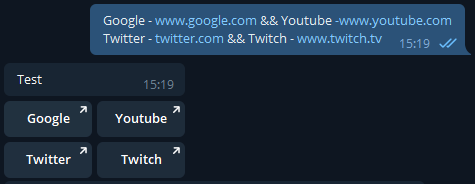
To create several buttons on the same line (for example buttons with links), the && character must be sent as separator:
text1 - link1 && text2 - link2 && text3 - link3
Example:
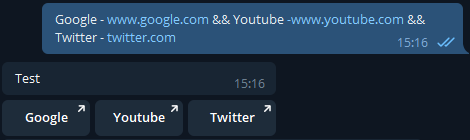
To create several buttons on several rows, you need to start a new line to separate one row from another.
text1 - link1 && text2 - link2
text3 - link3 && text4 - link4
Example: